Log the repair and follow up on whether it worked
After the repair, you log when it was done and by whom. Cuidasa asks again later whether it fixed the problem, and your answer goes into the room's history.
When you'll need this
When you open the full result and have done (or hired) the repair, and when a follow-up notice arrives.
Step by step
On the full result, tap “Log that I did the repair”.
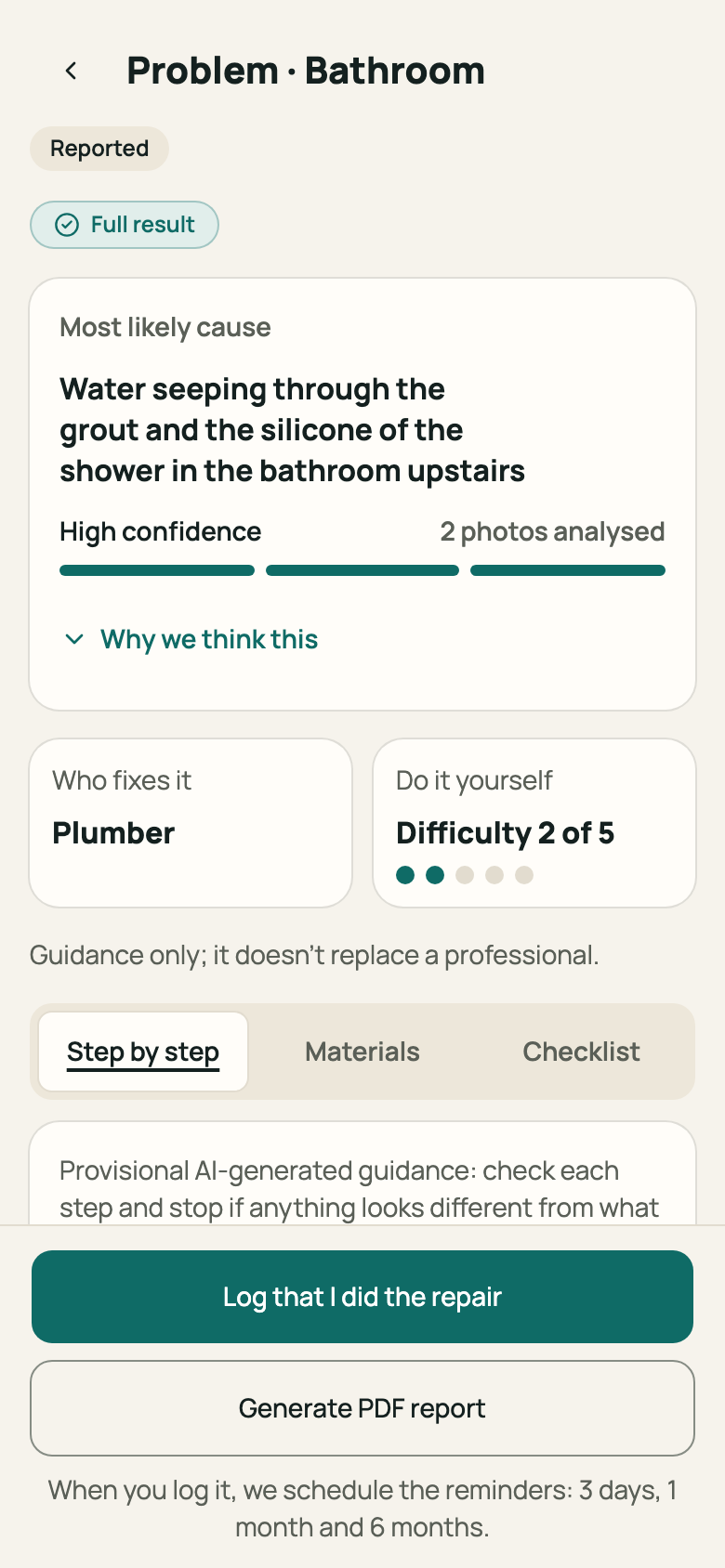
Step 1: Full result with the “Log that I did the repair” button Under “Log repair”, check the “Repair date” and choose under “Who did it”: “Myself” or “A service provider”, with the “Provider's name”. Tap “Log repair”.
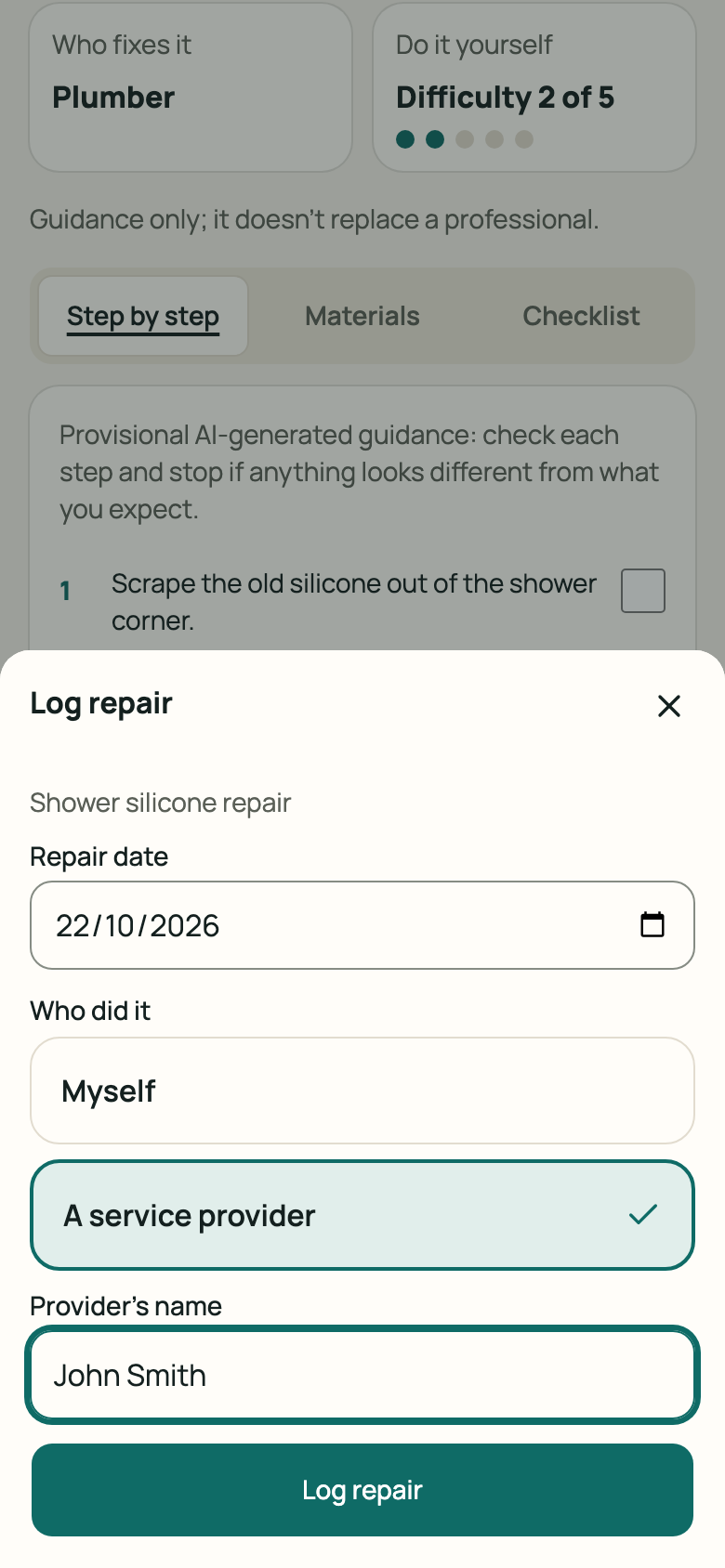
Step 2: “Log repair” panel filled in The screen shows “Repair logged” and when we'll ask whether it worked. Tap “See follow-ups” or “See on the timeline”.
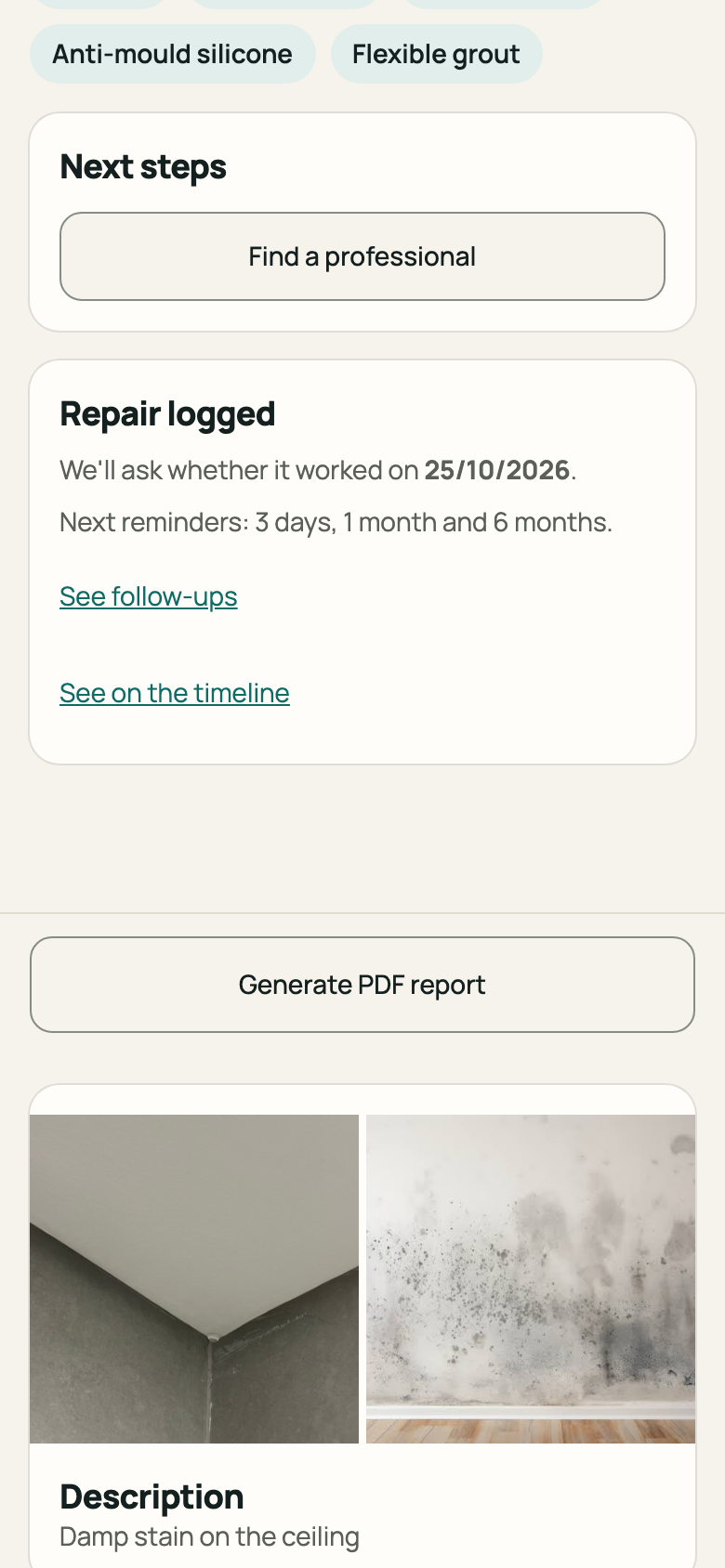
Step 3: “Repair logged” confirmation When the date arrives, the item appears under “Follow-ups” in “Today”. On the card, tap “It worked” or “Still a problem”. To answer in more detail, tap “See all” next to the heading, then “Answer” on the item in the list.
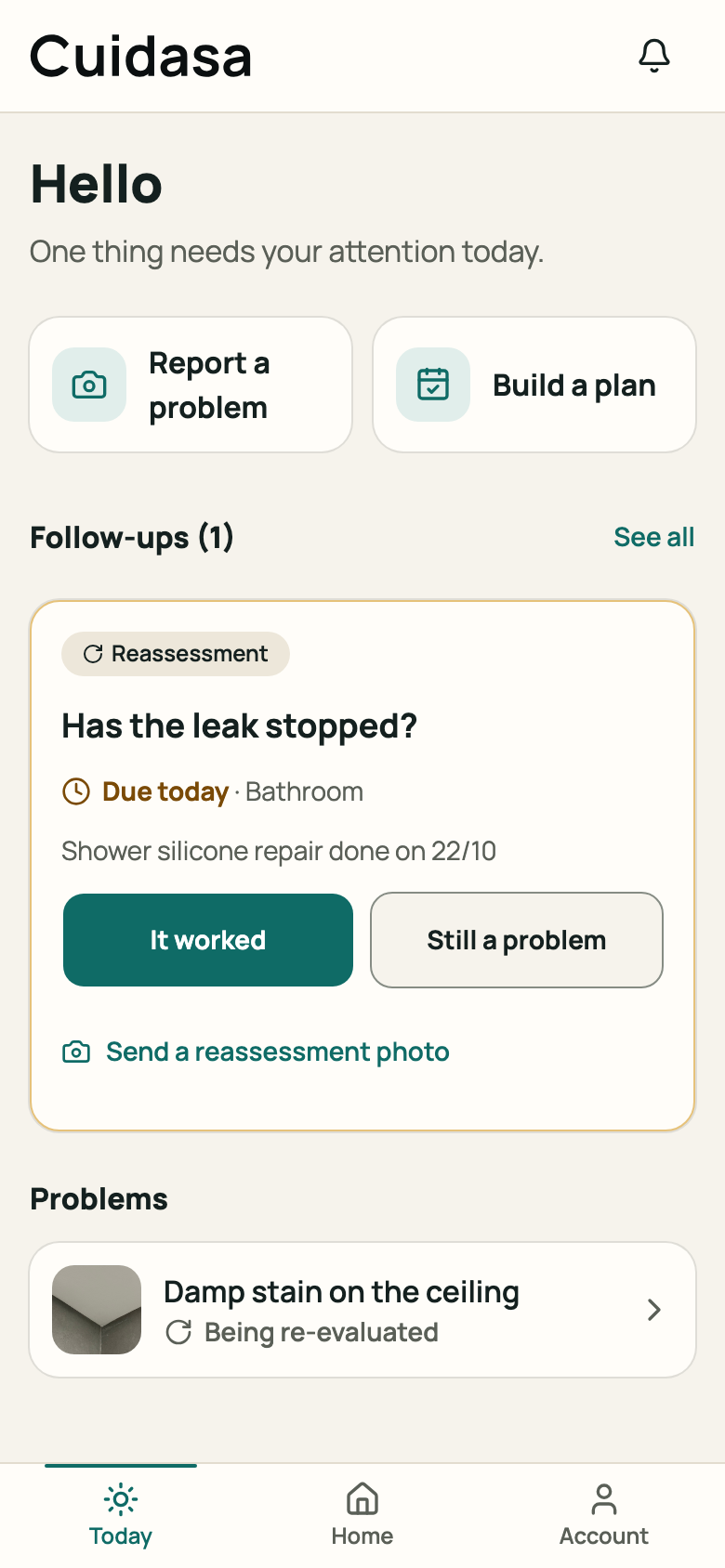
Step 4: Follow-up card in Today On the follow-up screen, choose “Yes, it worked”, “No, it didn't work” or “I don't know”. If you like, write a “Note (optional)” and send a photo. Tap “Send answer”.
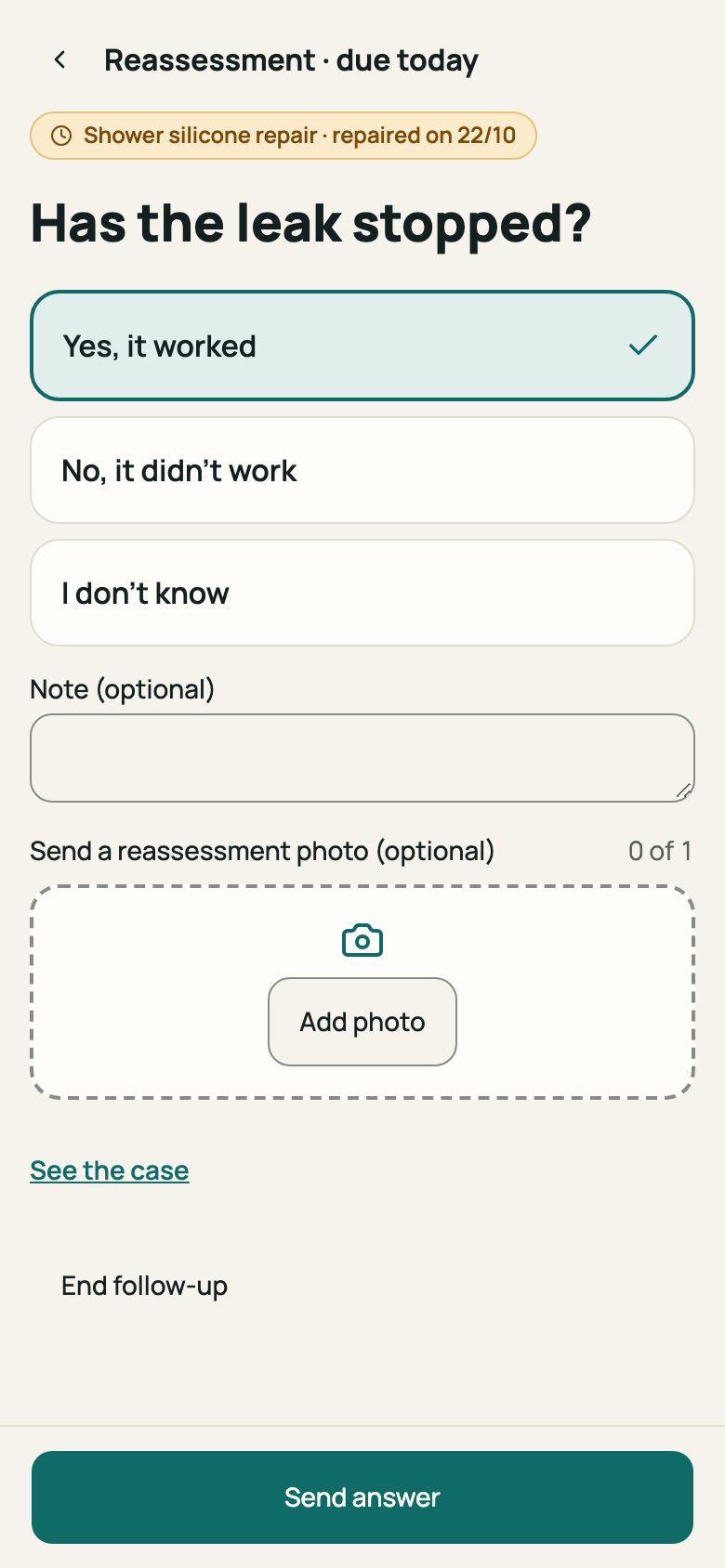
Step 5: Follow-up screen with the three answers If the repair didn't fix it, tap “Report again”: the new diagnosis takes that repair's history into account.
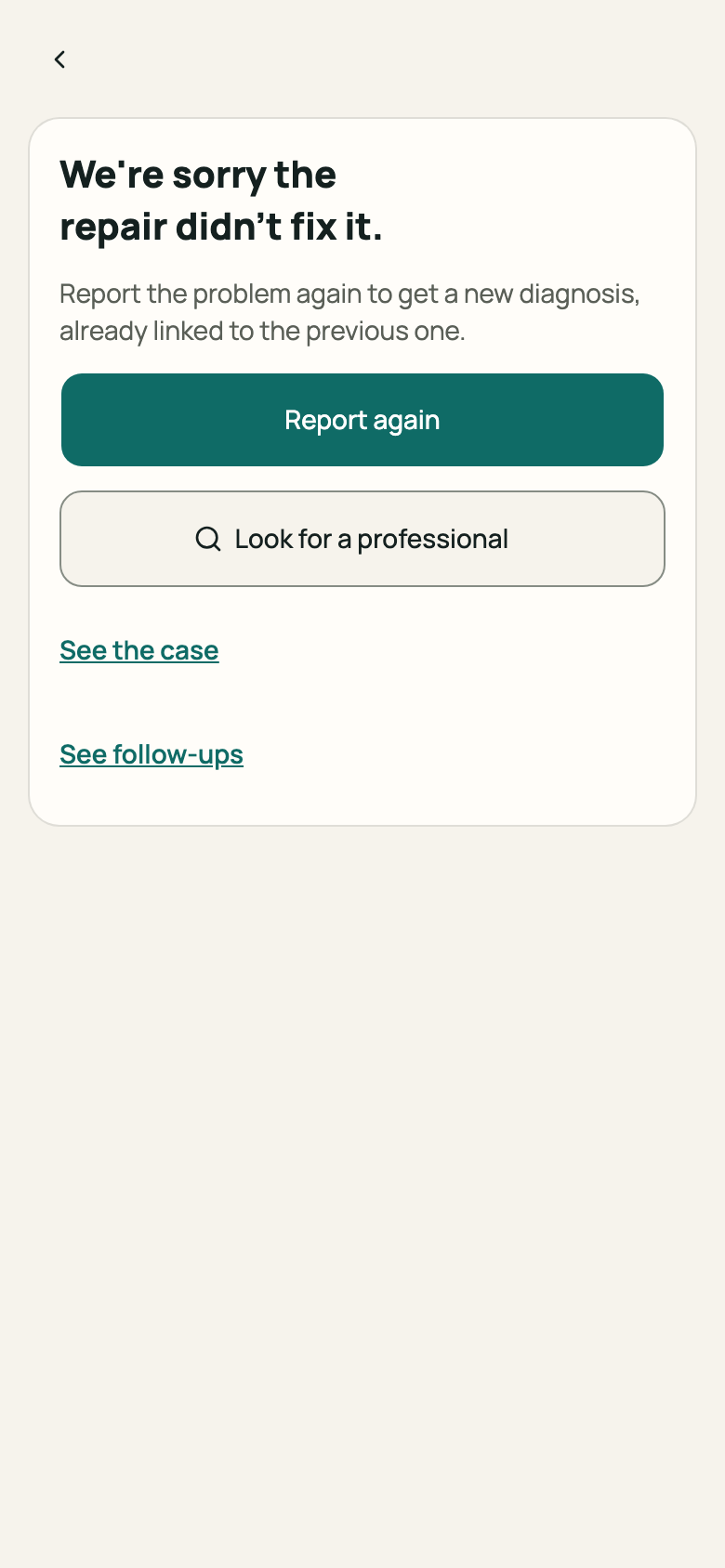
Step 6: “We're sorry the repair didn't fix it” notice with “Report again”
Good to know
- The dates of the questions come from the rule for each type of repair. The screen shows the date of each question.
- Marking “It worked” in Today sends it after 5 seconds. Tap “Undo” if you did it by mistake.
- To stop being asked, use “End follow-up”. To get the notices by email, see Account, data and privacy.
Related articles
Was this helpful?
Thanks for the feedback.
Thanks! Since you didn't accept measurement cookies, we didn't send anything.
Still have a question? Talk to us