Build and look after the preventive plan
The preventive plan lists maintenance tasks for the equipment in your home, with reminders. It is built for one home at a time.
When you'll need this
When you want to prevent problems, and in “Today”, on the “Build your preventive plan” card.
Step by step
In Today, tap “Build my plan” or, in your home, on the “Equipment” tab, “Build a plan”. Choose the home and tap “Continue”.
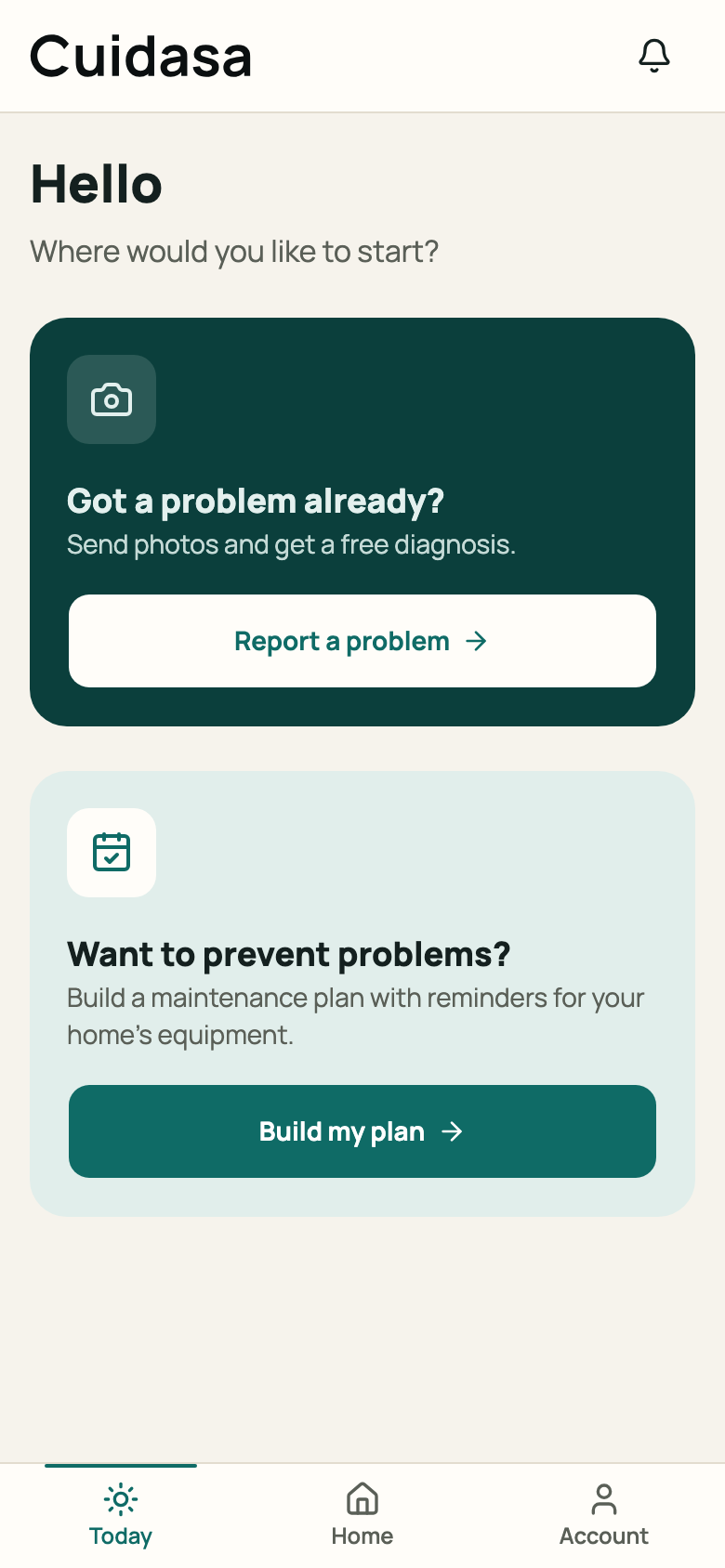
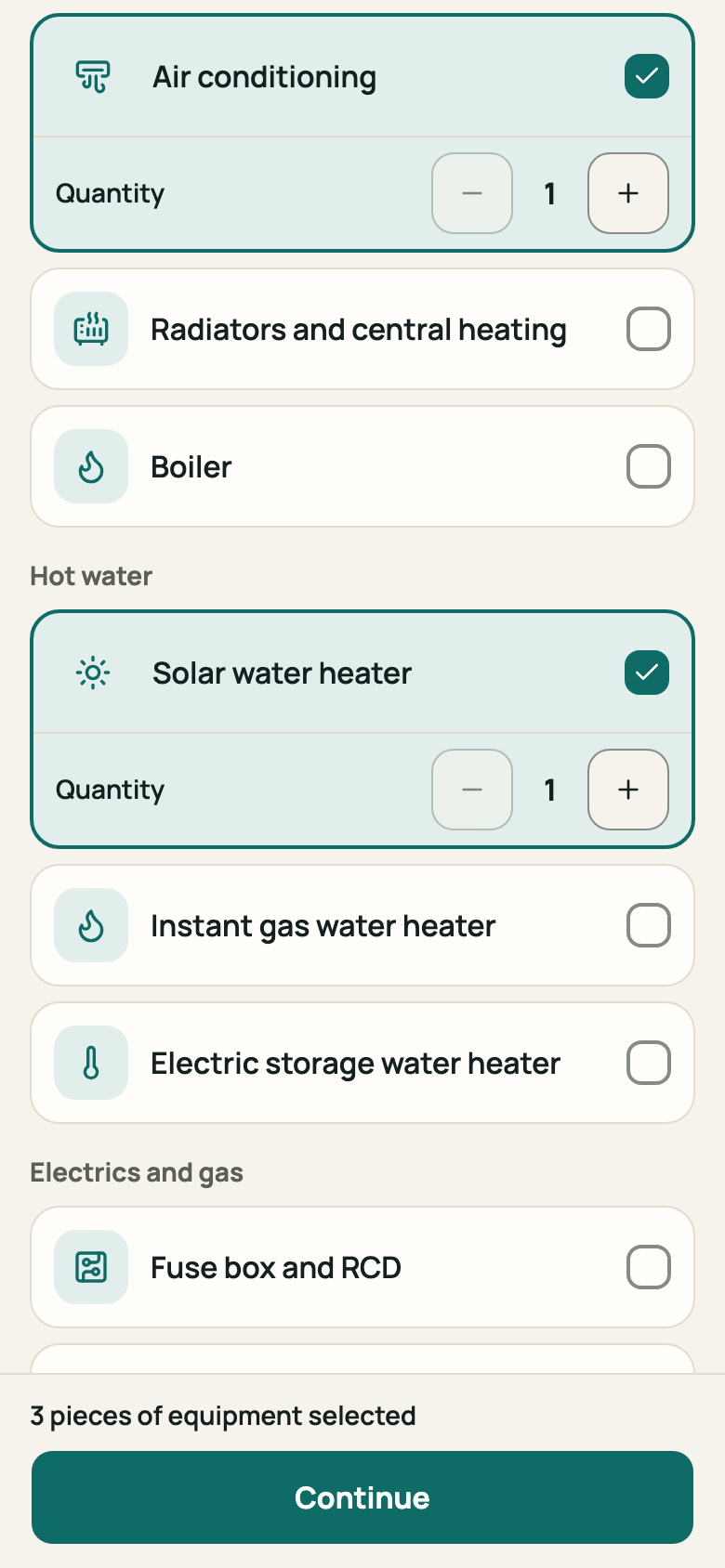
Step 1: Today with the “Build your preventive plan” card Under “What do you have at home?”, tick the equipment and the quantity of each. If yours isn't listed, use “I can't find mine”. Tap “Continue”.
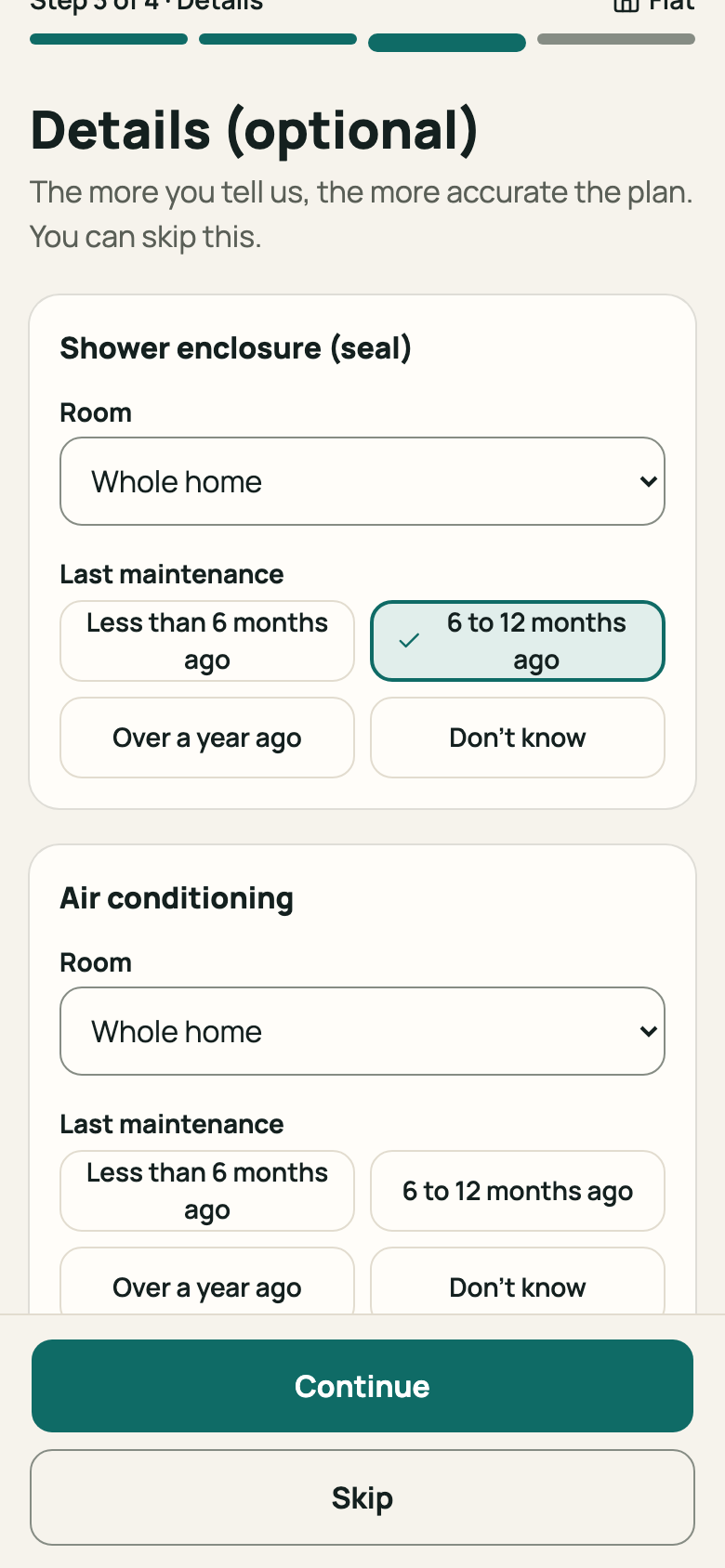
Step 2: “Equipment” step with items ticked Under “Details (optional)”, enter the “Last maintenance” and other details, or tap “Skip”.
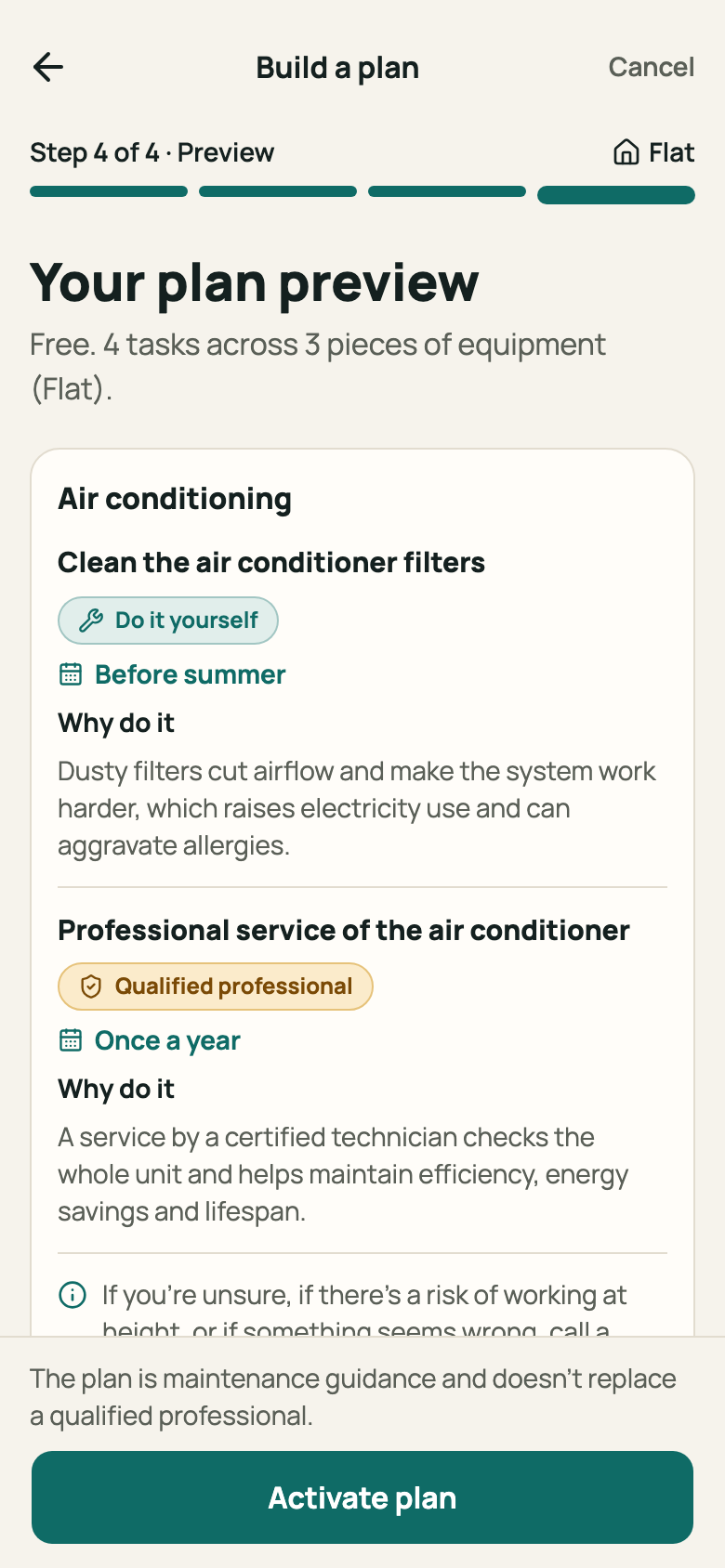
Step 3: “Details” step Under “Your plan preview”, see the tasks, how often each is due and whether each is for a “Qualified professional” or “Do it yourself”. When it looks right, tap “Activate plan”. How many tasks appear depends on the equipment and quantities you ticked.
Step 4: Plan preview with tasks Tasks arrive under “Coming up” in Today. On each task, tap “Done” when you finish it, or use “Postpone 7 days”, “Skip this time” or “I found a problem”.
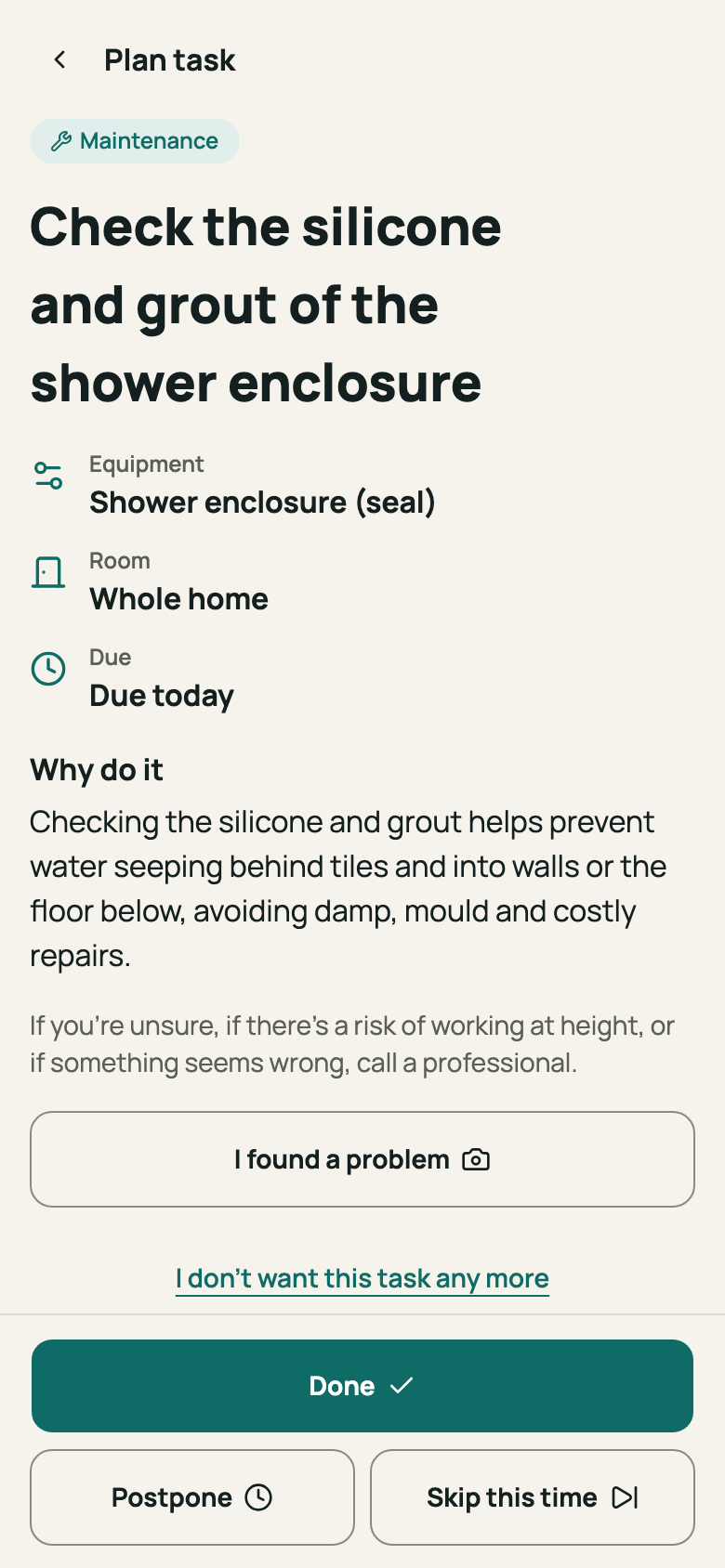
Step 5: Plan task with its actions In your home, on the “Equipment” tab, the “Email reminders” switch turns the weekly summary on and off. “End plan” is in the same block.
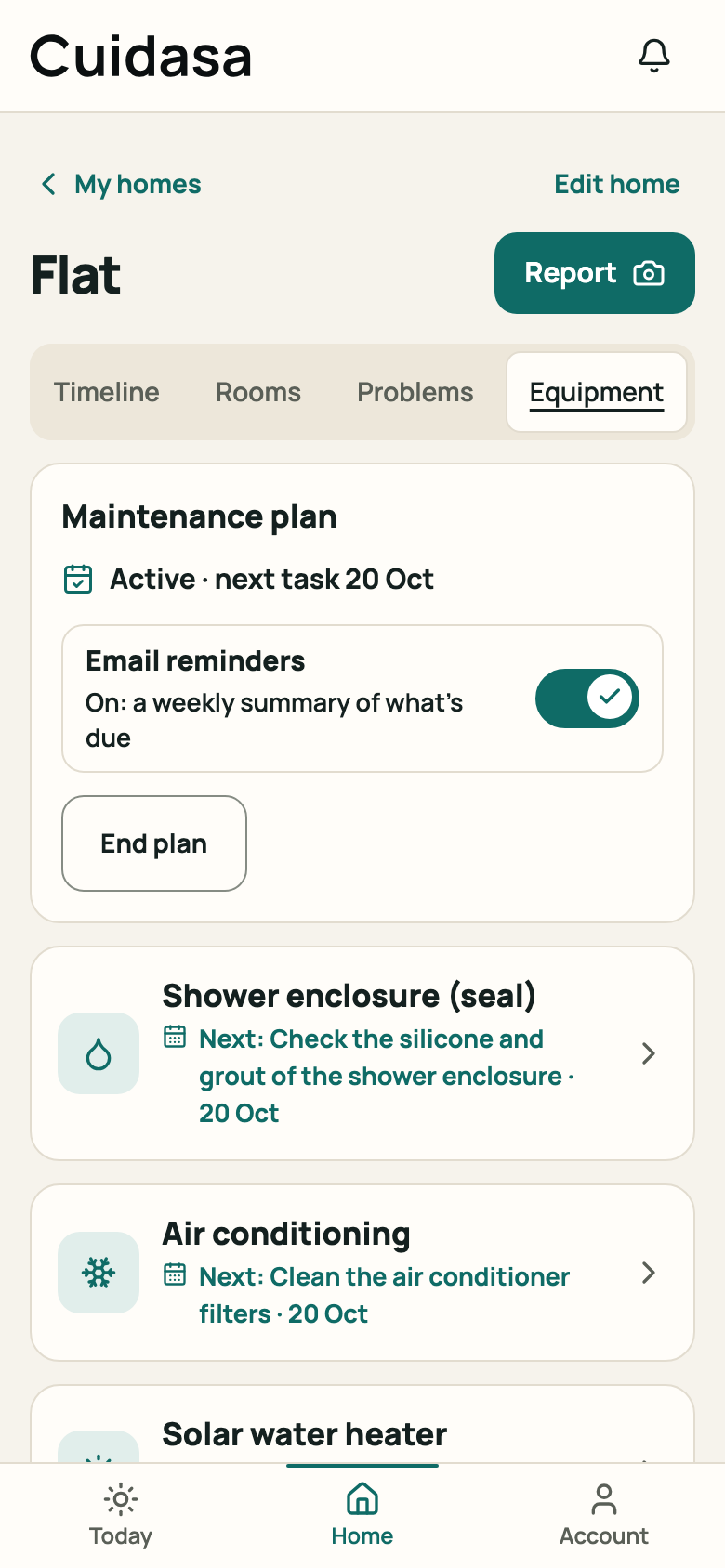
Step 6: Plan block on the “Equipment” tab
Good to know
- Tasks marked “Qualified professional” shouldn't be done on your own. If in doubt, or if there's a risk of falling from height, call a professional.
- “I don't want this task any more” removes the task from the plan. To bring it back, you need to remove the equipment and add it again.
- “End plan” removes the pending tasks from Today, but the history is kept, and you can build the plan again.
Related articles
Was this helpful?
Thanks for the feedback.
Thanks! Since you didn't accept measurement cookies, we didn't send anything.
Still have a question? Talk to us