Start by adding your home and its rooms
Every problem you report is tied to a room. Setting up your home and its rooms first means each room's history builds itself.
When you'll need this
The first time you use Cuidasa, or when you want to add another home (a beach house, say).
Step by step
Open the “Home” tab and tap “Add home”.
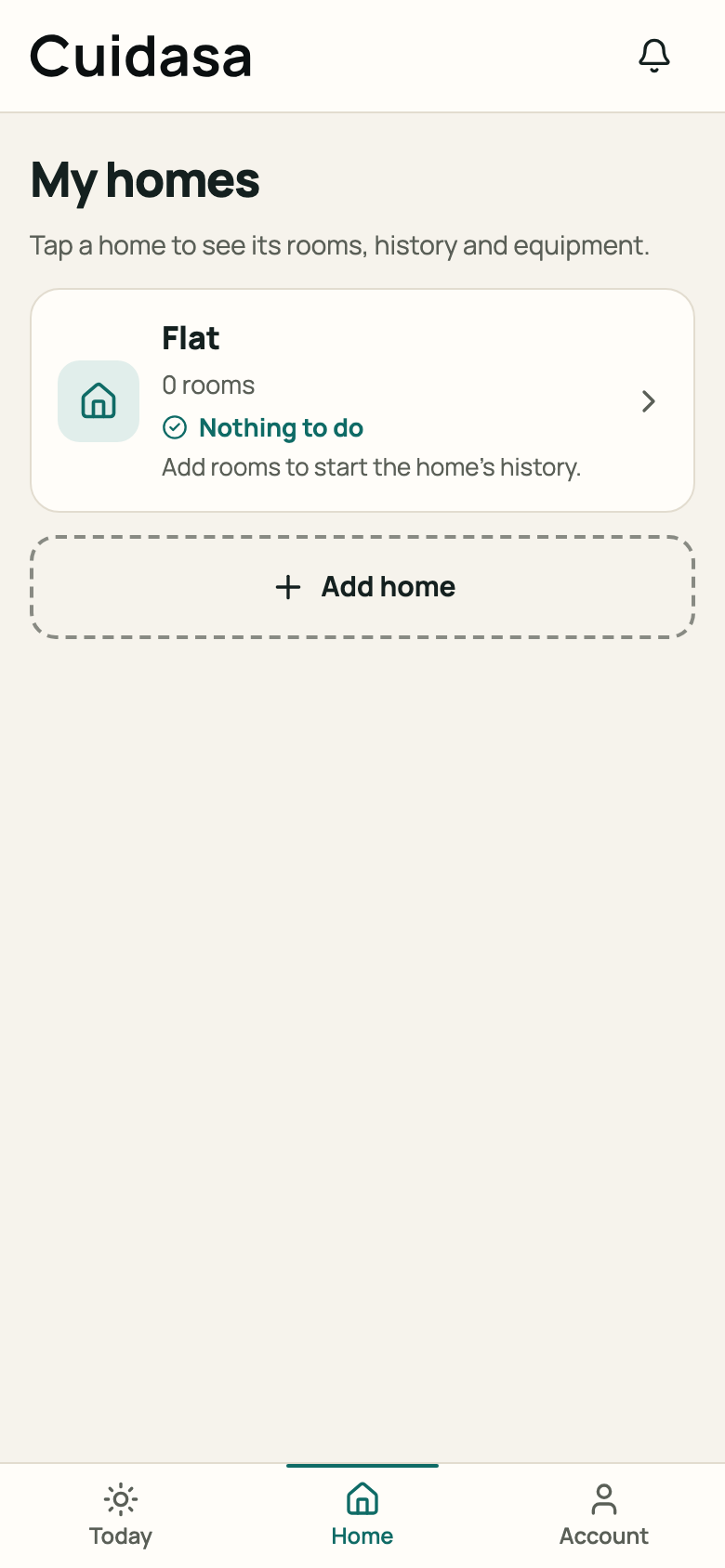
Step 1: Home tab with the “My homes” list and the “Add home” button Fill in the “Home name”. It's the only required field. Tap “Save home”.
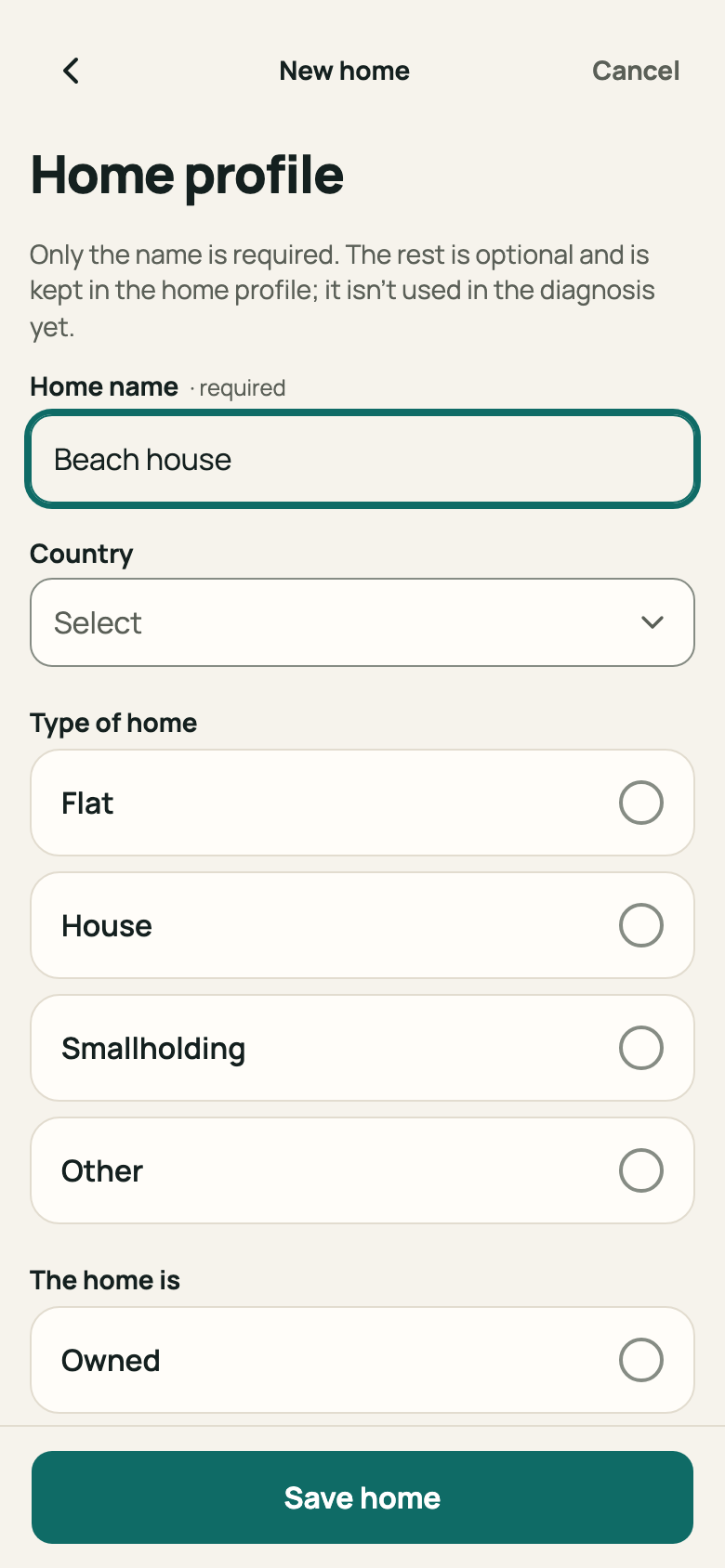
Step 2: “Home profile” screen with the name filled in and the “Save home” button On the “Home added” confirmation, tap “Add rooms”.
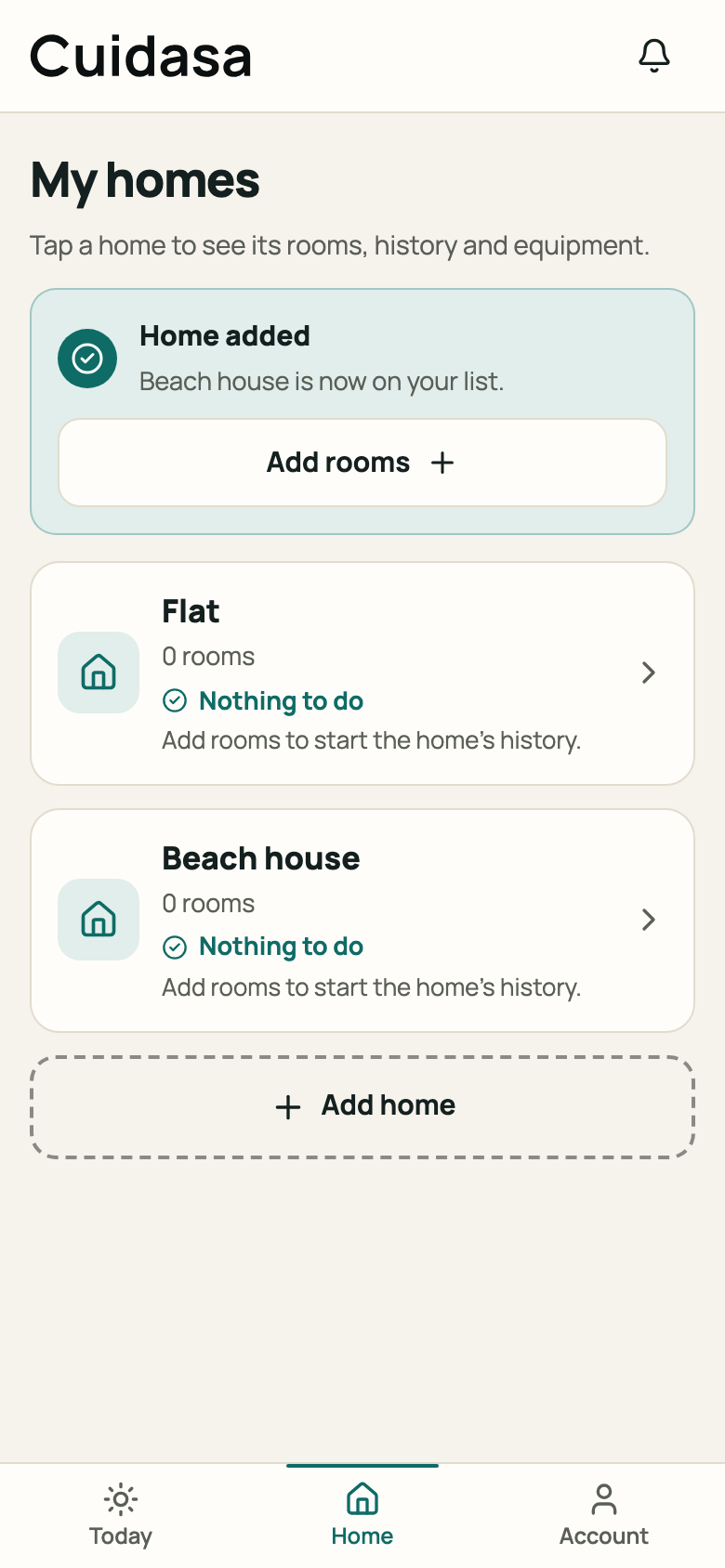
Step 3: “Home added” confirmation with the “Add rooms” button Type the “Room name”, choose the “Type” and tap “Add room”. Repeat for each room.
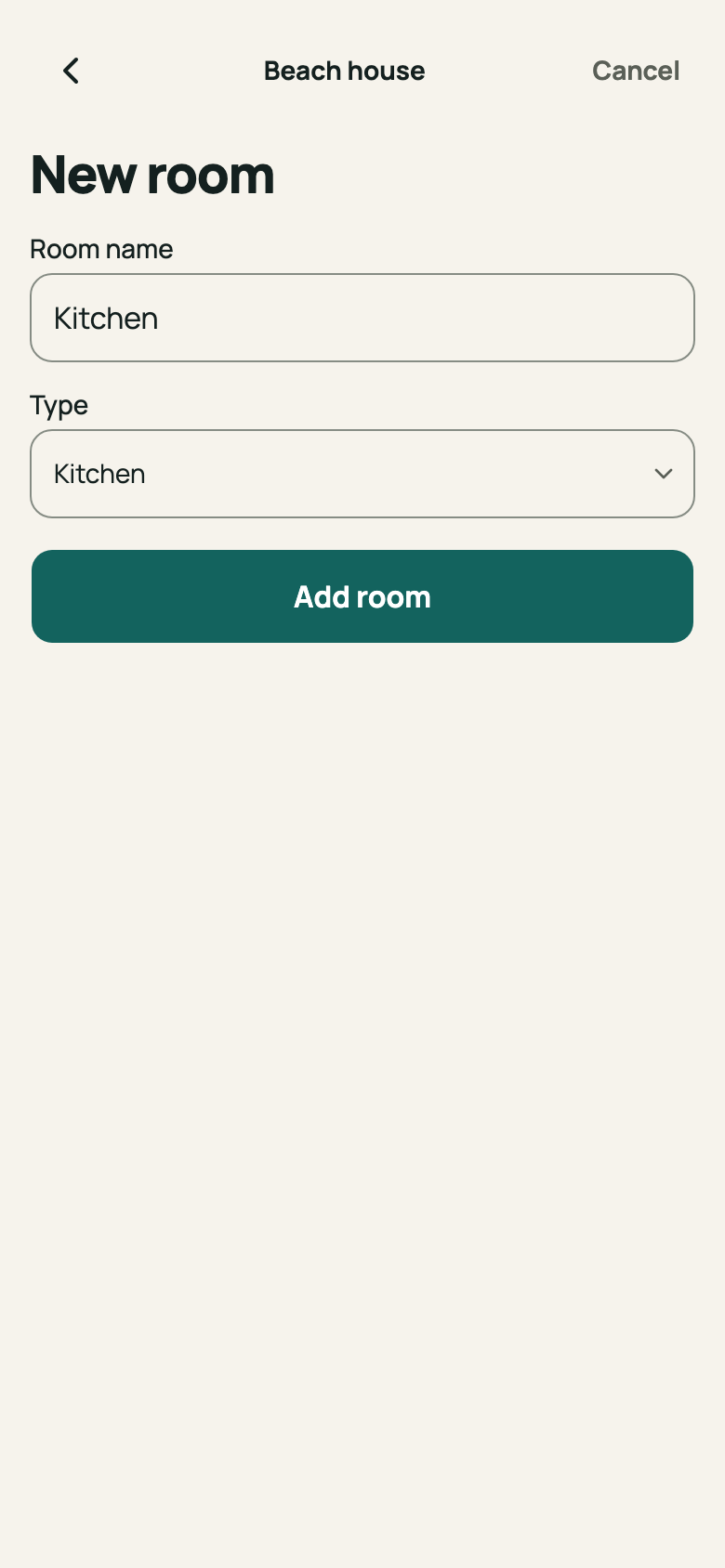
Step 4: “New room” screen with a name and type chosen In your home, the “Rooms” tab shows the list. The “Timeline”, “Problems” and “Equipment” tabs sit alongside it.
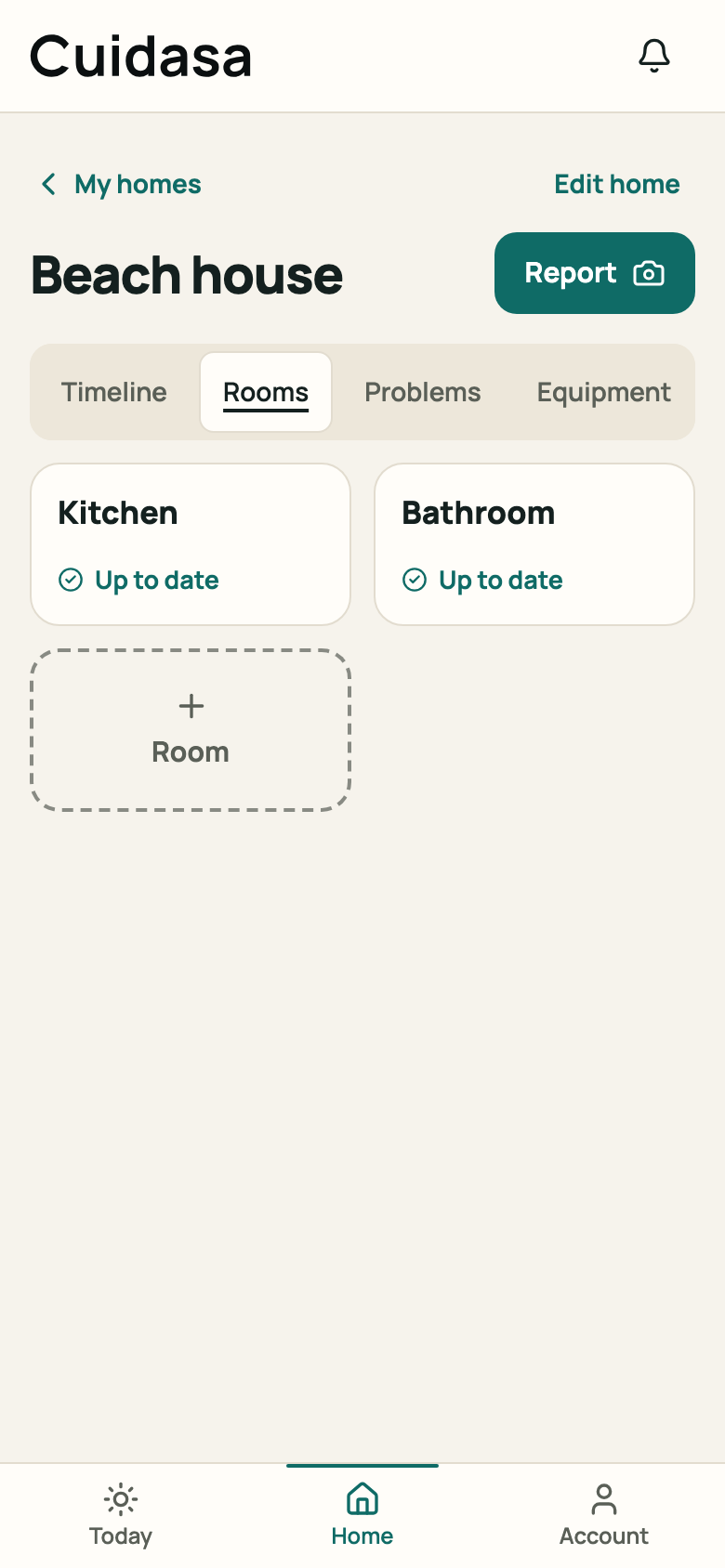
Step 5: The home's “Rooms” tab with two rooms
Good to know
- You can have more than one home. Each has its own rooms, problems and plan.
- The home's country is optional when you create it, but it must be filled in before you can pick equipment from the catalogue and build the plan. To add it later, use “Edit home”.
- Each home accepts up to 100 pieces of equipment.
Related articles
Was this helpful?
Thanks for the feedback.
Thanks! Since you didn't accept measurement cookies, we didn't send anything.
Still have a question? Talk to us